 Brainerce Help
Manage products
Product status, editing, duplicating, translating, bulk actions, inline editing, and per-channel/per-language overrides.
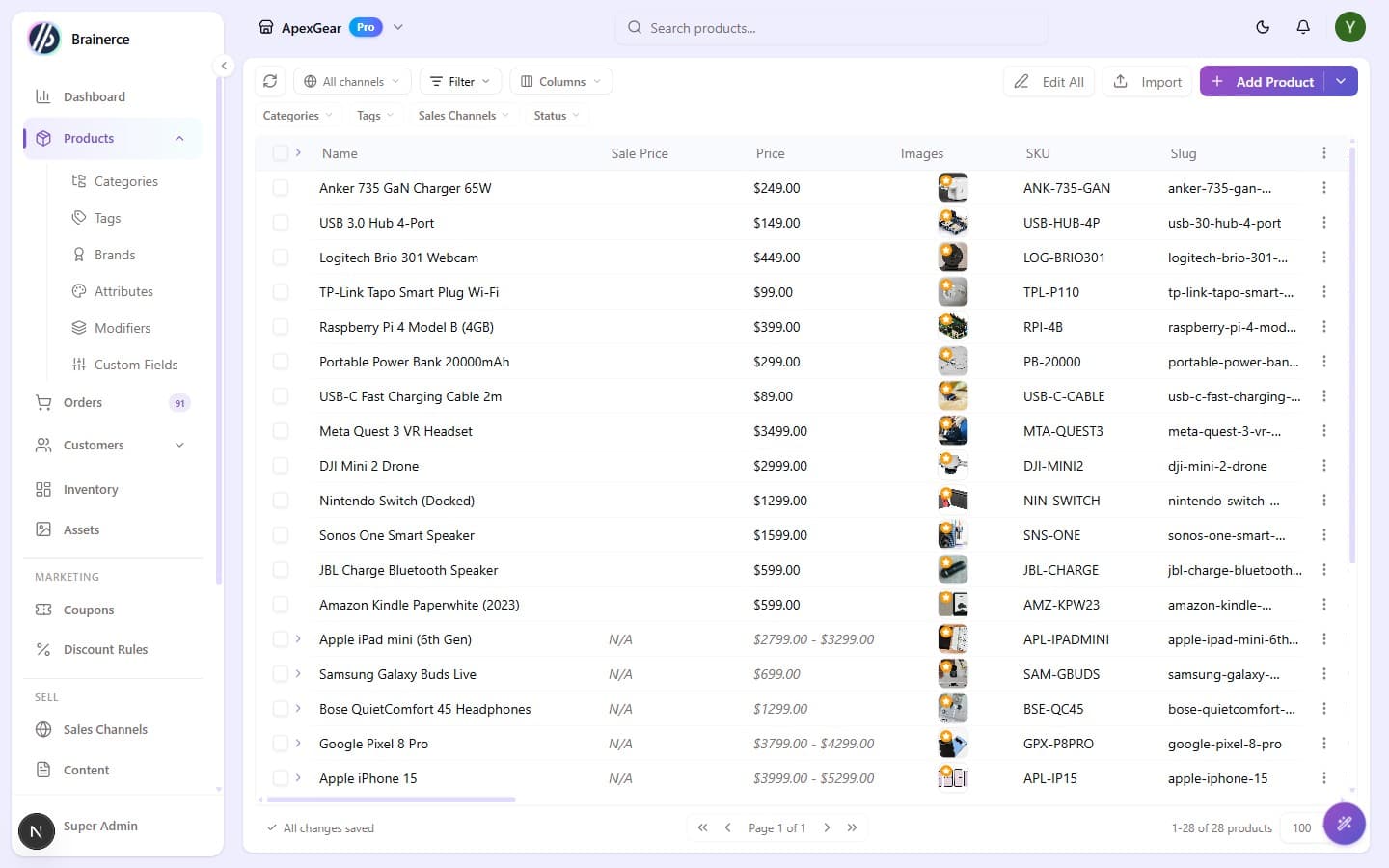
Beyond adding products, you run your whole catalog from the Products table: edit, duplicate, translate, change status, and make sweeping changes in bulk.
Product status
Every product has a status:
- Active means live and sellable on your storefront.
- Draft means saved but hidden; finish the details before selling.
Change status from the row's status badge, from the editor's save options, or across many products with a bulk action.
Row actions
Open a product's ⋯ menu for:
- View in store opens the product on your live storefront (one option per connected sales channel).
- Edit in Form reopens the full product editor.
- Duplicate copies the product. You choose a new title, the new status, and which details to copy.
- Translate runs an AI translation of the product's content into one of your other store languages.
- Delete removes the product (you'll confirm first).
Bulk actions
Select several rows to reveal the bulk bar:
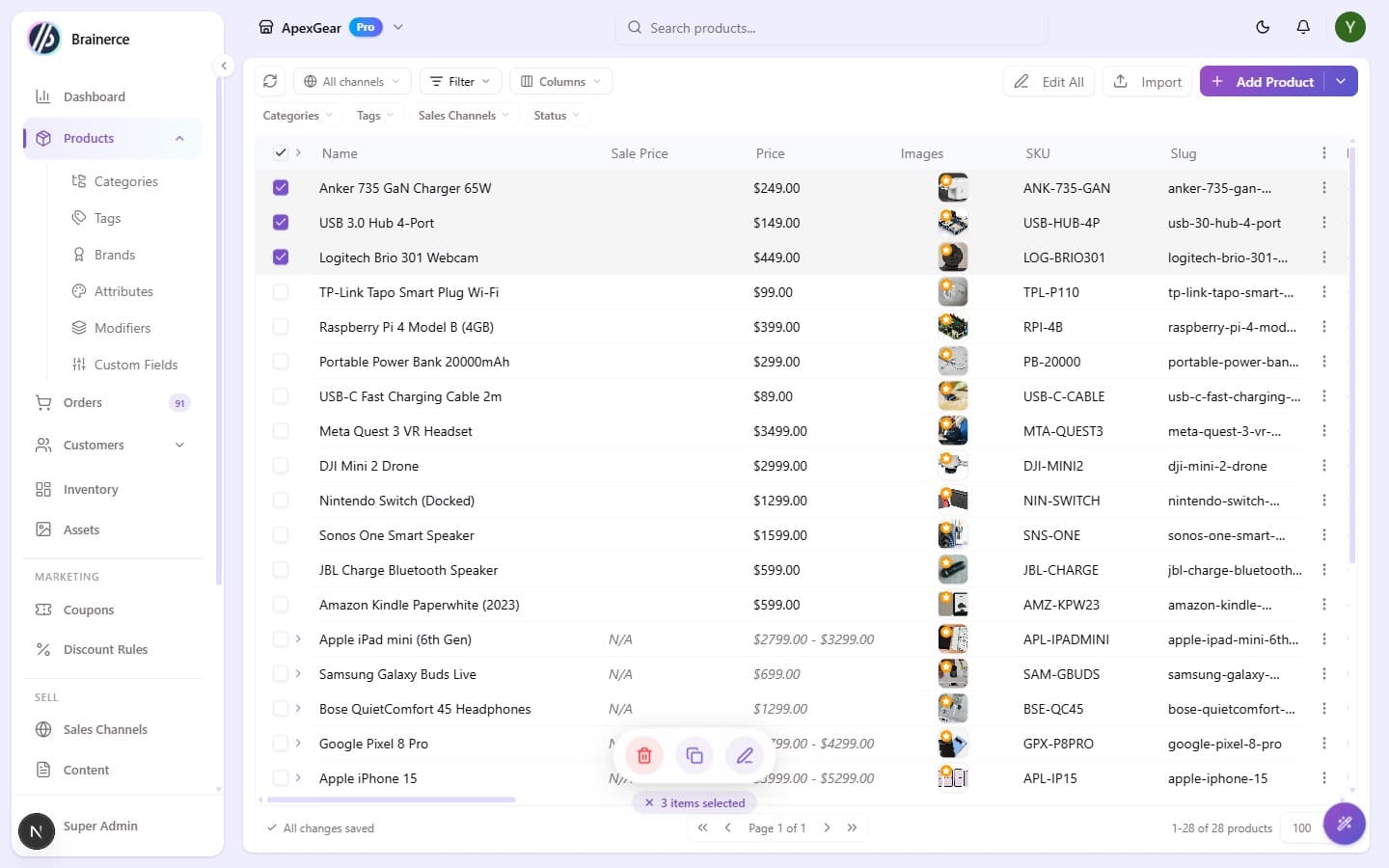
- Bulk Edit changes status, base / sale / cost price, or inventory across the selection, with set / increase / decrease / clear operations (fixed amount or %).
- Deactivate moves the selection to Draft in one click.
- Duplicate copies several products at once.
- Translate runs an AI translation across the selection.
- Export downloads the selected products as CSV.
- Delete removes several at once.
- Edit all applies bulk edits across the whole filtered list, not just the rows you ticked.
Inline editing & columns
Click most cells to edit them in place: price, stock, status, SKU, and more save on their own. Use the Columns button to show, hide, and reorder columns; there are far more than fit on screen, including SEO score, reviews, cost price, shipping & tax class, availability windows, barcode, and translation status. See Working with tables.
Per-channel & per-language editing
Selling on multiple sales channels or in multiple languages? Scope the table to one channel or language with the filters at the top, then edit values just for that channel or language. Clicking a cell opens a per-channel (or per-language) override editor. Everything you don't override keeps the product's main values. For the full picture of what translates and what stays the same in every language, see Translate products into another language.
Search & filter
Search by name or SKU, and filter the list by status, category, brand, sales channel, and more to find products fast.
Other things the products table can do
Four surfaces open from columns and menus on the products table rather than from the editor:
- SEO score. Click a product's score for its own SEO audit: what's missing, what's weak. The store-wide view is SEO Autopilot.
- Reviews. The Reviews column opens a moderation panel for that product's reviews.
- AI specs, in the product editor, propose custom fields by reading your description, so a spec table doesn't have to be typed out by hand.
- Product Settings, from the table's settings menu, control pricing-formula auto-fill behaviour for the table, and hold the list of formulas themselves. On Always recompute from cost, editing a cost in the table overwrites a price you set by hand. See Pricing formulas.
Availability windows
A product can carry availability hours: per-day time windows when it can be bought. Outside them it isn't purchasable. This is what you want for a kitchen that stops serving breakfast at 11, rather than manually toggling stock twice a day.
What's next?
- Add a product is the full editor walkthrough.
- Bulk import from CSV adds many products at once. It creates only; it cannot update products you already have.
- Inventory covers stock levels and low-stock alerts.
Add a product
Step by step, add a single product with variants, images, inventory, and SEO so it's ready to sell on your storefront.
Pricing formulas (work out the price from your cost)
Set up a markup rule so Brainerce fills in a product's price from the cost you paid. Covers the formula language, which products a formula covers, what happens when two formulas fit, and why a formula sometimes does nothing.